
Disclaimer: The content on this site is for informational and entertainment purposes only. It consists of general money-saving tips and lifestyle hacks. Nothing on this site constitutes financial, investment, tax, or legal advice. Always do your own research and, where appropriate, seek advice from a qualified financial adviser before making any financial decisions. This post contains affiliate links. If you click and purchase, we may earn a small commission at no extra cost to you.
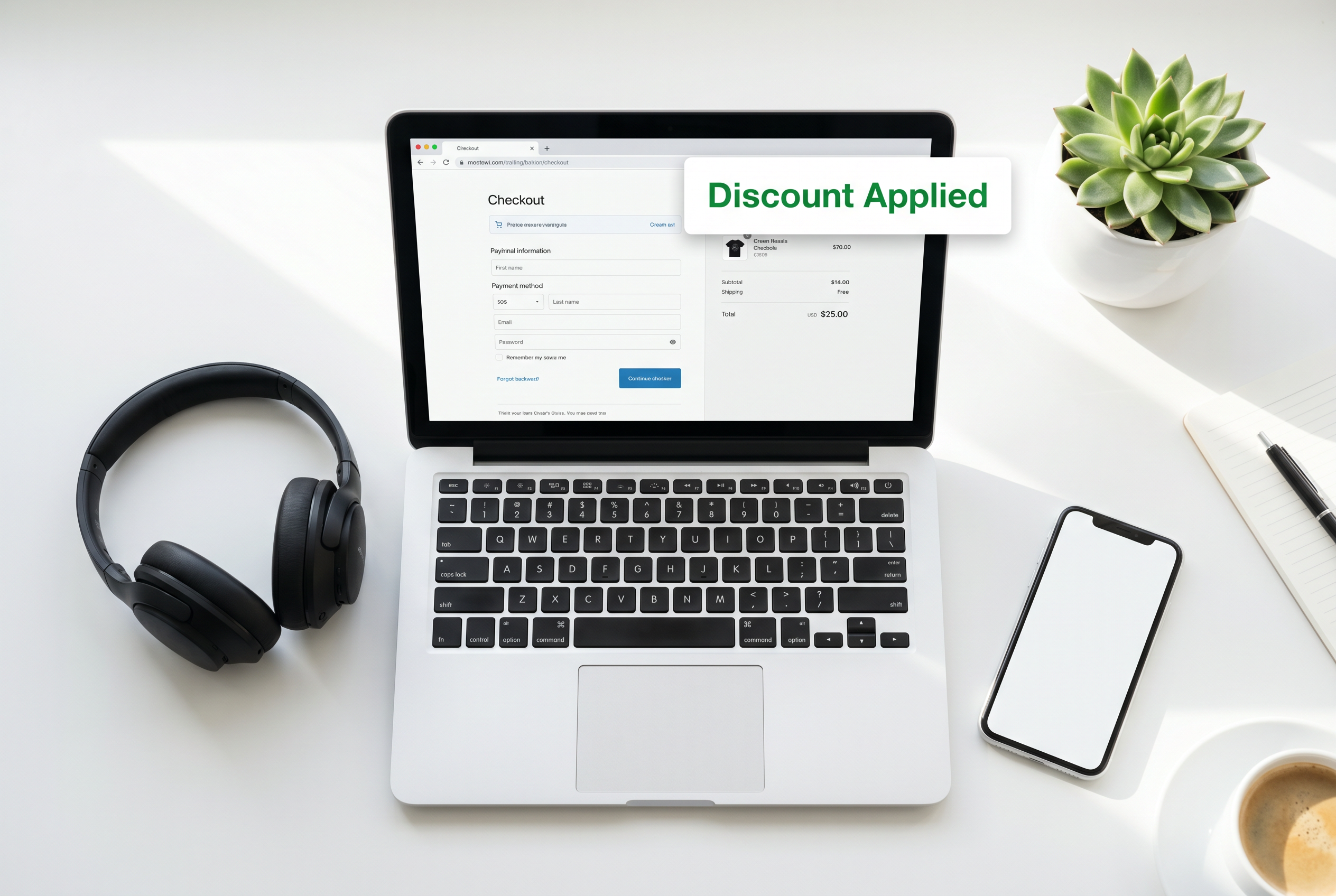
You know the scene: you’ve filled your basket, you’re ready to check out, and then you spot the little “promo code” box.
And suddenly your brain goes: Wait… am I about to pay full price like a mug?
So you open a tab. Then another. You type “[shop name] discount code”. You click three dodgy-looking sites. You copy and paste a code that “definitely works” (spoiler: it doesn’t). You try again. Now you’re 20 minutes deep and irrationally annoyed over $4 saving.
If that sounds familiar, you’re not alone.
The good news is you can mostly automate the whole thing. The best browser extensions for discount codes sit quietly in your browser and kick in at checkout, testing a bunch of codes in seconds. Some also compare prices elsewhere, track price drops, and offer cashback on top.
This guide will walk you through:
- The extensions that are actually worth installing
- How to run more than one without breaking checkout
- The features most people ignore (but save the most money)
- Common mistakes that quietly wipe out your savings
- What to do when an extension finds… absolutely nothing
If you shop online even semi-regularly, this is one of those “set it up once, benefit forever” habits.
Why Browser Extensions Beat Manual Discount Code / Coupon Hunting (By a Mile)
Manual code hunting is basically a tax on your time.
Retailers know that most people:
- can’t be bothered to search
- get frustrated quickly
- don’t want to risk breaking checkout
- will just pay full price to get it over with
Extensions flip that. Instead of you doing the work, the extension does what you wish coupon sites did: it checks codes quickly, applies the best one it finds, and moves on.
And when they’re good, they don’t just help with codes. Many also:
How to Maximize Savings with Discount Codes
- show price history or “is this price good?”
- alert you when something you viewed drops in price
- compare prices across other retailers
- stack cashback (where allowed)
A simple rule that works
Install 2–3 good extensions rather than relying on one. They often have different retailer partnerships and different code databases, so one might find something the others miss.
The only caveat: don’t install five and hope for the best. Too many can conflict and make checkout buggy (more on that later).
The Best Coupon & Deal Extensions (Free) That Actually Pull Their Weight
Not every “savings” extension deserves space in your browser. Some are spammy, some are slow, and some are basically ads wearing a trench coat.
These are the ones people consistently use for real savings:
Honey
Honey is popular because it’s simple: you hit checkout, it tries codes, and you either save money or you don’t.
It tends to work well for mainstream retailers and is a good “default” extension if you don’t want to overthink things.
Best for: effortless code testing at checkout
Watch out for: sometimes the best discounts are “member” or “newsletter” codes that don’t show up
Capital One Shopping (availability varies by region)
This one is more of a shopping assistant than purely a coupon tool. It’s known for price comparisons and telling you if the same item is cheaper elsewhere.
Depending on where you’re based, availability/features can vary, so think of it as: “great if it works in your country + for your retailers.”
Best for: catching “this is cheaper elsewhere” moments
Watch out for: if it’s not supported for your region, swap to a price-comparison-focused alternative
Rakuten (cashback-first)
Rakuten is more about cashback than pure coupons. It can still find codes, but the real value is when you stack:
- sale price
- discount code (if any)
- cashback percentage
Over time, cashback can be one of the easiest “invisible” savings streams—especially around seasonal promotions.
Best for: cashback on shops you already use
Watch out for: cashback often has terms (categories excluded, tracking requirements)
InvisibleHand (price comparison)
This is the “I will quietly tell you you’re about to overpay” extension.
It’s especially handy for electronics, books, and items sold across multiple retailers.
Best for: quick price comparisons
Watch out for: sometimes comparisons aren’t perfectly like-for-like (model numbers matter)
Quick tip to avoid checkout chaos
If multiple extensions pop up at once and your basket starts acting weird, don’t panic—just:
- Let one extension run first (the one you trust most).
- If it doesn’t find anything, try another.
- Disable the others for that site if needed.
How to Set Up 2–3 Discount Code Extensions Without Slowing Down Your Browser
People worry that extensions will turn Chrome into a toaster. It doesn’t have to.
Here’s the setup that keeps things smooth:

1) Install one at a time (and test it)
Install extension #1. Use it on one checkout. See what it does.
Then add extension #2 and repeat.
This sounds obvious, but it saves you from the “I installed five things and now nothing works” situation.
2) Turn off noisy notifications
Most extensions come with enthusiastic pop-ups. You don’t need alerts every time you open a retailer’s homepage.
Go into settings and turn notifications down to something like:
- “only at checkout”
- “only when there’s a big saving”
- “don’t show price alerts unless I add the item”
3) Use site exclusions if there are conflicts
If one extension breaks checkout on a specific site, exclude that site (or disable the extension for it). It’s usually a one-time fix.
4) Create accounts (only if you’ll use the extras)
You don’t always need an account for basic coupon testing. But if you want:
- price tracking
- cashback payouts
- saved lists / wishlists
…you’ll usually need to sign up. If that feels like hassle, start without an account and add it later once you know you’ll keep using it.
5) Keep them updated
Extensions change constantly because retailer websites change constantly. An outdated extension is the quickest way to get “nothing happens at checkout.”
The Features Most People Ignore (But Save the Most Money)
If you only use extensions for “apply coupon,” you’re missing the best parts.
Price tracking (the patient-person advantage)
This is perfect for anything you don’t need today.
Add the item to a list and let the extension ping you when the price drops. This works brilliantly for:
- winter coats (buy in spring)
- summer gear (buy in autumn)
- gifts (track early)
- electronics (watch for predictable sales cycles)
This is how people save 20–40% without doing anything dramatic. Not through magic codes—just by not buying on the most expensive day.
Price history and “is this a good price?”
Some tools show whether a price is:
- unusually high
- average
- near a recent low
That alone can stop you falling for fake urgency like “limited time deal” when it’s been that price for weeks.
Cashback stacking (when it’s allowed)
Cashback can be boring… until you realise it often stacks with sales.
A common “good” combo is:
- retailer sale price
- a coupon code (if one exists)
- cashback
Not every shop allows stacking, and cashback may exclude certain categories, but when it works, it’s one of the easiest wins.
Shopping portals (hidden bonus rates)
Sometimes cashback extensions offer higher rates if you click through their portal first.
If you shop first and remember later, you often won’t get credited. Which leads to the most important rule of cashback:
If cashback matters to you, click through first. Always.
Cart / view tracking
Some extensions remember items you looked at and will alert you if they drop. This is great for those “I’m not sure yet” purchases.
Common Mistakes That Quietly Cost You Money
Even with great extensions, people lose money through small habits.
Mistake 1: Installing too many extensions
More isn’t better. Past 3–4, you can get:
- checkout freezes
- code boxes not working
- pages loading slowly
- extensions blocking each other from applying codes
Fix: choose 2–3 that do different jobs (e.g., coupon finder + cashback + price comparison).
Mistake 2: Assuming a discount code means “best price”
A 10% code feels like a win… until you realise another retailer is 20% cheaper to start with.
Fix: for anything above ~£30, do a quick comparison check. Your extension may do it automatically, but it’s worth confirming.
Mistake 3: Not checking permissions
Extensions can “see” what you do in your browser depending on permissions. That’s not automatically bad, but you should be deliberate.
Fix: only install from official extension stores and reputable companies, and don’t keep sketchy extensions “just in case.”
Mistake 4: Losing cashback because of tracking rules
Cashback usually fails because of:
- ad blockers interfering
- not clicking through the portal
- switching tabs mid-checkout
- using codes from outside sources that void cashback
Fix: if you care about cashback, do a clean checkout: click through, shop, pay, done.
Mistake 5: Forgetting the fine print
Some codes require:
- minimum spend
- full-price items only
- specific categories
- new customers only
Not a scam—just conditions.
Fix: if a code fails, don’t spiral. Try the next one and move on.
Timing Your Shopping (So Extensions Can Actually Help)
Extensions work best when you’re not buying in a rush.
A few patterns worth knowing:
Seasonal clearances are where the big discounts live
End-of-season can be 60–80% off in some categories.
If you can buy “next season’s stuff” a bit early (or late), you win.
Midweek is often calmer
Anecdotally, many retailers run promotions or refresh deals midweek. Weekends can be higher-demand, which doesn’t always help pricing.
Big sale events are obvious—but still worth tracking
Black Friday, January sales, back-to-school—these are predictable. The trick is not buying the first “deal” you see, but tracking the item ahead of time so you know whether it’s actually good.
Set alerts early
If you need something in two months, set the alert today. Urgency is what forces full-price purchases.
When Extensions Don’t Find Any Codes (What to Do Next)
Sometimes you’ll hit checkout and the extension proudly announces: “No codes found.”
That doesn’t always mean “no discount exists.” It often means “no public code in the database.”
Try this:
1) Check the extension is enabled for that site
Some extensions disable themselves on certain retailers. Look in settings.
2) Try incognito mode
A clean session can change what you see (and sometimes what offers appear), especially if:
- you’ve visited the site a lot
- you’ve had items sitting in your basket
- you’ve been price-checking repeatedly
3) Look for newsletter / first-order discounts
Many brands offer “10% off your first order” for email signups. Extensions won’t always surface those because they’re personalised.
If you do this, you can unsubscribe later—just don’t forget.
4) Check the retailer’s own promos page
Some sites hide deals in:
- “Offers”
- “Sale”
- “Student / key worker discount”
- “Bundles”
5) Use a smarter basket
If you’re just under free delivery, don’t add random junk. Add something you’ll actually use (toiletries, pantry item) and remove it if the shipping logic changes at checkout.
Quick FAQ (Real Questions People Ask)
Are discount code extensions safe?
They can be, if you stick to reputable extensions from official stores and you pay attention to permissions. Avoid unknown extensions with few reviews or weird permission requests.
Do these extensions slow down browsing?
Good ones shouldn’t noticeably slow you down, especially if you keep it to 2–3. If your browser feels sluggish, disable them one by one to find the culprit.
Can I use multiple codes on one purchase?
Usually not—most retailers allow one code. But you can sometimes stack:
- a sale price
- a code
- cashback
That’s where extensions shine.
Why do codes fail even when an extension finds them?
Because codes can have conditions (minimum spend, specific products, new customers only) or they’ve simply expired. Extensions test quickly, but some rules only show up right at payment.
A Simple “Do This Once” Setup (So You Actually Save Money)
If you want the quickest path without overthinking:
- Install one coupon extension (for auto-testing codes).
- Install one cashback extension (if you shop online regularly).
- Optional: install one price-comparison tool if you buy electronics or higher-ticket items.
- Turn off noisy notifications.
- Use price tracking for anything you don’t need today.
That’s it. You don’t need a complicated system.
Final Thought: The Biggest Savings Come From Not Rushing
Extensions are great, but the real secret is simple: give yourself a little time.
If you buy everything instantly, you’ll miss:
- price drops
- better codes
- cashback boosts
- seasonal promotions
If you can wait even 24–72 hours on non-urgent purchases, you’ll be shocked how often a better deal appears.
Install your extensions, set them up cleanly, and let them do what they’re good at: saving you money while you get on with your life.
Been trying to budget? Check out this post.